
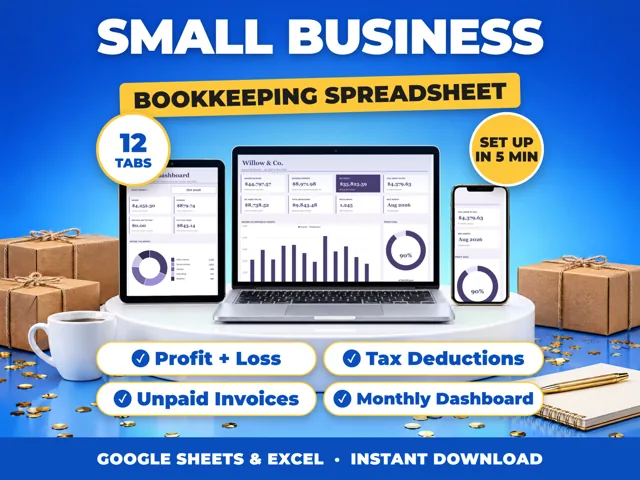
To change the currency format in Google Sheets, select the cells, click Format > Number > Custom currency, search for or pick the currency you want, and click Apply. To change the default currency for the whole file, click File > Settings, pick your country under Locale, and click Save settings. In a 12-tab ProfitDrawer bookkeeping spreadsheet, the currency symbol is set once on the Settings tab and every label follows it.
Format selected cells (computer):
- Open the spreadsheet in Google Sheets.
- Select the cells to format.
- Click Format > Number > Custom currency.
- Search the text box for a currency, or enter your own format.
- Optional: use the dropdown in the input box to change properties such as the number of decimal places.
- Click Apply.
Change the file's default currency:
- Click File > Settings.
- Under General, change Locale (and Time zone if needed).
- Click Save settings.
Google says changing the locale changes the spreadsheet's default currency, along with date and number formatting, including which character is used as the decimal separator. That affects everyone who opens the file.
Formatting only changes how a number looks; it does not convert amounts between currencies.
In ProfitDrawer workbooks, labels and totals use the symbol typed in the Currency symbol box on Settings, so change it there rather than reformatting each tab.
Source: Format numbers in a spreadsheet: Google Docs Editors Help · Updated
Tools and spreadsheets for this

Related questions
- Can I use my own currency in a ProfitDrawer spreadsheet?
- How do I open an Excel file in Google Sheets?
- How do I add up a column in Google Sheets?
- Do ProfitDrawer spreadsheets work in Google Sheets and Excel?
- How do I make a copy of a Google Sheets file into my own Drive?
- How do I add a drop-down list in Google Sheets?
All questions on ProfitDrawer Answers →
General information, not tax, legal or financial advice. Check the rules for your state and your situation.