
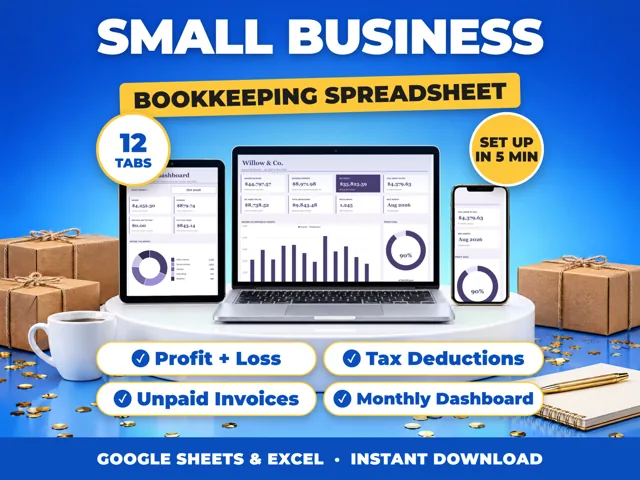
To calculate a percentage in a spreadsheet, divide the part by the whole, for example =B2/C2, then format the cell as a percent (in Google Sheets, Format > Number > Percent), so 0.25 shows as 25%. For percent change, use =(new-old)/old. ProfitDrawer's Monthly Summary works out each month's margin as profit divided by income and shows a blank instead of an error when income is 0.
Common percentage formulas (B = part or new value, C = whole or old value):
| Goal | Formula | Example |
|---|---|---|
| Part of a total | =B2/C2 |
300 / 1,200 = 25% |
| Percent change | =(B2-C2)/C2 |
(1,500 - 1,200) / 1,200 = 25% |
| A percent of an amount | =C2*0.25 |
25% of 1,200 = 300 |
| Share of a column total | =B2/SUM($B$2:$B$100) |
each row's share |
Show it as a percent: select the cells and click Format > Number > Percent. Sheets treats 1 as 100%, so a result of 0.25 displays as 25%. The TO_PERCENT function does the same thing inside a formula.
Avoid #DIV/0!: Google notes the divisor cannot equal 0. Use =IF(C2=0,"",B2/C2) to show a blank until the whole has a value.
Profit margin example: profit 2,000 on income 8,000 gives =2000/8000 = 25%.
In ProfitDrawer workbooks, Top Clients shows each client's share of the year's income the same way, and the tax set-aside is the percent you type on Settings multiplied by profit.
Source: TO_PERCENT function: Google Docs Editors Help · Updated
Tools and spreadsheets for this

Related questions
- How do I calculate profit margin for my small business?
- What is the difference between markup and margin?
- How much should I set aside for taxes if I am self-employed?
- How do I set a monthly profit goal for my business?
- Why does my formula show an error in Google Sheets?
- How do I open an Excel file in Google Sheets?
All questions on ProfitDrawer Answers →
General information, not tax, legal or financial advice. Check the rules for your state and your situation.