
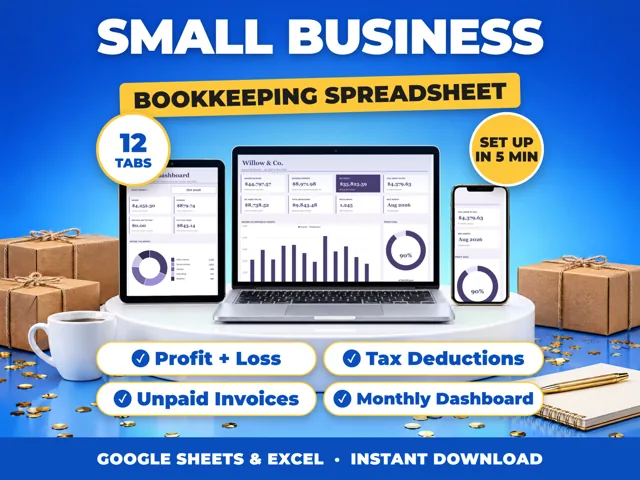
To make a chart in Google Sheets on a computer, select the cells with your data, including the header row, then click Insert > Chart. Sheets picks a chart type; to change it, double-click the chart, open Setup in the chart editor and choose from the Chart type dropdown. Use the Customize tab for titles and legend. ProfitDrawer's 12-tab bookkeeping spreadsheets come with their dashboard charts already built.
Steps (computer):
- Open the spreadsheet in Google Sheets.
- Select the cells to include, for example months in column A and profit in column B.
- Click Insert > Chart. The chart editor opens on the right.
- In Setup, open the Chart type dropdown and pick a type, such as a column chart for monthly income or a pie chart for expenses by category.
- In Customize, change Chart style, Chart & axis titles or Legend.
Layout tips from Google:
- Put the text you want in the legend in the first row or column of your data.
- If your headers are in a column rather than a row, use Switch rows / columns in Setup.
- To add more data, use Add another range in Setup.
To edit a chart later, double-click it to reopen the editor.
A simple monthly column chart of income and expenses is often the quickest way to spot a slow month or a cost that keeps growing.
Source: Add and edit a chart or graph: Google Docs Editors Help · Updated
Tools and spreadsheets for this

Related questions
- How do I add up a column in Google Sheets?
- What is a profit and loss statement for a small business?
- How do I know if my small business is actually making money?
- Do ProfitDrawer spreadsheets work in Google Sheets and Excel?
- How do I open an Excel file in Google Sheets?
- How do I make a copy of a Google Sheets file into my own Drive?
All questions on ProfitDrawer Answers →
General information, not tax, legal or financial advice. Check the rules for your state and your situation.