
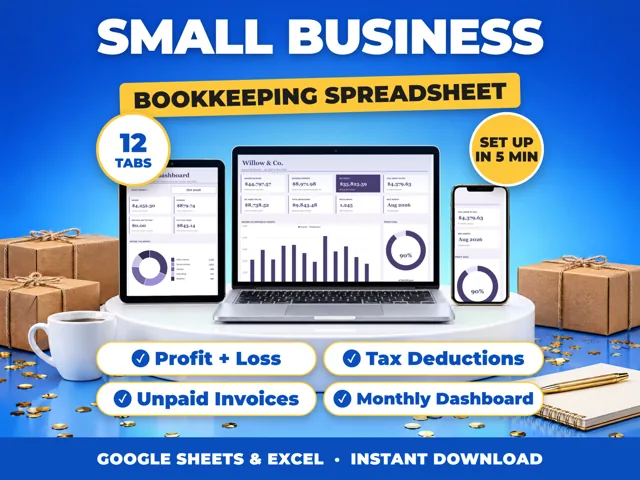
To see the version history of a Google Sheet on a computer, open the spreadsheet and click Last edit at the top right. A panel lists earlier versions with who made the changes; click one to see it, then click Restore this version and Restore to go back to it. You need edit permission to see version history. In a 12-tab ProfitDrawer bookkeeping spreadsheet imported to your Drive, this is a way to undo an accidental change.
View an earlier version (computer):
- Open the spreadsheet.
- At the top right, click Last edit.
- Pick a version in the right panel to see who changed what. Sheets hides unmodified rows by default; click Show unmodified rows at the bottom right to see everything.
Restore it: select the version, click Restore this version, then Restore. Google notes that in Sheets, restoring clears the cell-by-cell edit history from before the restore, so make a copy first if you need that history.
Name a version: select it, click More, then Name this version, for example "Books closed 2026". A spreadsheet can have up to 15 named versions. Turn on Only show named versions to filter the list.
Keep an old version separately: choose More > Make a copy.
Limits to know:
- Some changes do not show in edit history, such as added or deleted rows and columns, and values changed by formulas.
- Google may occasionally merge revisions.
Source: Find what changed in a file: Google Docs Editors Help · Updated
Tools and spreadsheets for this
Related questions
- How do I make a copy of a Google Sheets file into my own Drive?
- How do I share a Google Sheet with my accountant as view only?
- Can I use a ProfitDrawer spreadsheet for more than one year?
- Do I need to keep paper receipts or are photos enough?
- How often should I update my business books?
- How do I open an Excel file in Google Sheets?
All questions on ProfitDrawer Answers →
General information, not tax, legal or financial advice. Check the rules for your state and your situation.